윈도우10 ,11 시스템 파일 점검 명령어 2개


SFC 스캔나우
기술수준 : 기본

요약

시스템 파일 검사는 시스템 파일 손상을 검사하는 운영 체제에 내장된 유틸리티입니다. sfc /scannow 명령(시스템 파일 검사)은 보호된 모든 운영 체제 파일의 무결성을 검사하고 올바르지 않거나 손상되었거나 변경되었거나 손상된 버전을 다음으로 대체합니다. 가능한 경우 올바른 버전을 사용하세요. 손상을 복구할 수 없는 경우 DISM을 실행하여 가능한 한 많은 오류를 수정해야 합니다.


시스템 파일 검사는 Vista 및 UP에서 작동합니다.

Dism은 Win 7 및 UP에서 작동합니다.

내부자 빌드(예: 14915)를 실행 중이고 SFC가 ~20% 실패하는 경우 이는 이 빌드에 알려진 문제입니다.


근본적인 문제를 해결하기 위해 sfc 및/또는 DISM을 실행 중인 경우 해당 문제가 무엇인지 알려주세요!!!!


세부

시스템 파일(Windows DLL 파일 포함 )을 수정한 경우 sfc /scannow를 실행하면 시스템 파일이 기본 상태로 되돌아갑니다.


항상 사전에 데이터를 백업하는 것이 좋습니다!


시스템 파일 검사(SFC)를 실행하려면

시작으로 이동> CMD 입력

마우스 오른쪽 버튼을 클릭하고 관리자 권한으로 실행

( 승격된 명령 프롬프트 라고 함 )

OS 유형을 확인 하고 복구 하려면 sfc /scannow(sfc와 "/" 사이의 공백에 유의하세요)

OS 유형을 확인(확인만)하려는 경우 sfc /verifyonly(확인만 사용하면 변경되지 않음)


 모든 문제를 해결하려면 이 작업을 최대 3번까지 실행해야 할 수도 있습니다.


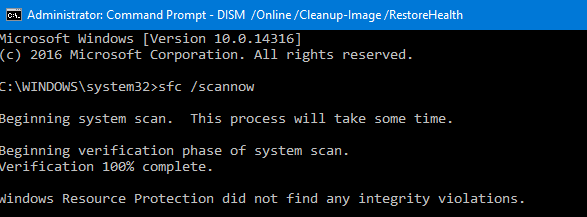
완료되면 세 가지 중 하나가 표시됩니다.


Windows에서는 무결성 위반을 발견하지 못했습니다(다행입니다).

Windows 리소스 보호가 손상된 파일을 찾아 복구했습니다(좋은 일입니다).

Windows 리소스 보호에서 손상된 파일을 발견했지만 그 중 일부(또는 전부)를 수정할 수 없었습니다(좋은 것은 아닙니다).  이 메시지가 나타나면 아래 설명에 따라 DISM을 실행하세요.


영상

SFC가 파일의 일부 또는 전체를 복구할 수 없는 경우 OS DVD에서 설치 복구 및 DISM(win 8 & UP)을 포함한 몇 가지 옵션이 있습니다.


SFC가 위반 사항을 찾지 못한 경우에도 DISM Restorehealth를 실행하는 것이 좋습니다.


디스엠

Win 8(이상)을 사용하는 경우 SFC에서 오류를 발견했는지 여부에 관계없이 DISM을 실행해야 합니다!!


관리자 권한 명령 프롬프트  에서

확인을 실행한 다음 스캔을 실행할 수 있지만 항상 RESTORE HEALTH를 실행 해야 합니다.


상태를 확인 하려면 (이미지가 손상된 것으로 플래그가 지정되었는지 확인하려면 /CheckHealth를 사용합니다.)

Dism /Online /Cleanup-Image /CheckHealth를 실행하세요.


상태를 검사 하려면 /ScanHealth를 사용하여 이미지에서 구성 요소 저장소 손상을 검사합니다. 이 옵션은 손상을 수정하지 않습니다.

Dism /Online /Cleanup-Image /ScanHealth를 실행합니다.


건강을 복원하려면(권장)

DISM /Online /Cleanup-Image /RestoreHealth를 사용하여 이미지에서 구성 요소 저장소 손상을 검사하고 복구 작업을 자동으로 수행하며 해당 손상을 로그 파일에 기록합니다. 일반적으로 파티션의 손상 및 크기에 따라 15~30분 정도 소요됩니다.


이렇게 스캔헬스 실행과 헬스 복원을 동시에 할 수 있습니다

DISM.exe /온라인 /Cleanup-image /Scanhealth && DISM.exe /Online /Cleanup-image /Restorehealth

Type DISM /Online /Cleanup-Image /RestoreHealth .  (please note the space after "dism", & "online" & "image")
If the repair is successful you may want to re-run SFC just to check.


DISM을 실행한 후 SFC /scannow를 다시 실행하여 모든 문제가 해결되었는지 확인하는 것이 좋습니다.


"소스 파일을 찾을 수 없습니다"라는 오류 메시지가 나타나면 ISO 파일을 마운트해야 하며 아래 명령을 사용하여 파일 위치를 지정해야 합니다.


ISO는 실행 중인 OS와 정확히 동일한 버전이어야 합니다. 10586.0의 ISO는 추가 업데이트와 파일이 있기 때문에 실행 중인 10586.35 시스템을 복구하지 않습니다.


DISM /Online /Cleanup-Image /RestoreHealth /source:WIM: X :\Sources\Install.wim:1 /LimitAccess 여기서 " X" 는 ISO가 있는 드라이브 문자입니다. "X"를 올바른 드라이브 문자로 변경하기만 하면 됩니다.

ISO가 없으면 만들 수 있습니다. 지침은 여기에 있습니다.


http://support.microsoft.com/kb/929833

http://pcsupport.about.com/od/toolsoftthetrade/ht/sfc-scannow.htm


이 위키가 도움이 되었다면 위키 하단에 ​​있는 '나'도 클릭해 주세요.


당신이 관심을 가질 만한 다른 Wiki


시스템 파일 검사(SFC) 시스템 파일 검사 및 복구

이메일 시스템... 차이점 설명 BugCheck 코드 124


중요한 Outlook.com 전자 메일 데이터를 백업합니다.

BCC101 시계 감시 시간 초과 문제 해결

이벤트 뷰어 컴퓨터에서 무슨 일이 일어나고 있나요?

드라이버 업데이트 중

BCC116/7 비디오 드라이버가 중지되었습니다

HD 테스트 방법 확인 중

Driver View 드라이버 검사를 위한 매우 편리한 유틸리티

Win 10의 안전 모드(필요하기 전에)

Outlook 메일(웹용 Outlook이라고도 함)


공동 저술 JMH3143/ ZigZag3143


SFC scannow

Technical Level : Basic

Summary

System file check is a utility built into the Operating System that will check for system file corruption The sfc /scannow command (System File Check) scans the integrity of all protected operating system files and replaces incorrect, corrupted, changed, or damaged versions with the correct versions where possible.  When it cannot repair the damage DISM should be run to fix as many errors as possible.


System file check works on Vista and UP

Dism works on win 7 and UP

If you are running an insider build (ie 14915) and SFC fails ~20% it is a known problem with this build


If you are running sfc &/or DISM to fix an underlying problem please tell us what that problem is!!!!


Details

If you have modified your system files (including Windows DLL files) running sfc /scannow will revert the system files back to the default state.


It is always a good idea to back up your data beforehand!


To run a system file check (SFC)

Go to start>Type CMD

Right click and run as Administrator

(called an elevated command prompt)

If you want to verify and repair the OS type sfc /scannow (note the space between sfc and "/")

If you just want to check (verify only) the OS type sfc /verifyonly (no changes will be made using verify only)


 You may have to run this up to 3 times to fix all the problems


When you have finished it will say one of three things


Windows did not find any integrity violations (a good thing)

Windows Resource Protection found corrupt files and repaired them (a good thing)

Windows Resource Protection found corrupt files but was unable to fix some (or all) of them (not a good thing)  If you get this message run DISM as described below


Image

If SFC was not able to repair some or all of the files there are a few options including a repair install from the OS dvd, and DISM (win 8 & UP)


If SFC did not find any violations it is still a good idea to run DISM Restorehealth


DISM

If you are on win 8 (and up) you  should also run DISM whether SFC found errors or not!!


From an elevated command prompt 

You can run Check, then Scan, but you should always run RESTORE HEALTH


To check the health (You would use /CheckHealth to only check whether the image has been flagged as corrupted)

run Dism /Online /Cleanup-Image /CheckHealth


To scan the health use /ScanHealth to scan the image for component store corruption. This option does not fix any corruption.

run Dism /Online /Cleanup-Image /ScanHealth


To RESTORE health (recommended)

Use DISM /Online /Cleanup-Image /RestoreHealth to scan the image for component store corruption, perform repair operations automatically, and records that corruption to the log file.  This generally takes 15-30 minutes depending on the corruption and size of the partition


You can run scanhealth & restore health at the same time like this

DISM.exe /Online /Cleanup-image /Scanhealth && DISM.exe /Online /Cleanup-image /Restorehealth

Type DISM /Online /Cleanup-Image /RestoreHealth .  (please note the space after "dism", & "online" & "image")
If the repair is successful you may want to re-run SFC just to check.


After running DISM it is a good idea to re-run SFC /scannow to make sure all the issues were fixed.


If you get the error message "cannot find source files"you need to have an ISO file mounted and need to specify where it is located with the below command


The ISO must be exactly the same version as the running OS.  An ISO of 10586.0 will not repair a running system of 10586.35 because it has additional updates and files.


DISM /Online /Cleanup-Image /RestoreHealth /source:WIM:X:\Sources\Install.wim:1 /LimitAccess  Where "X" is the drive letter where the ISO is located.  Simply change the "X" to the correct drive letter

If you do not have an ISO you can make one.  The instructions are here


http://support.microsoft.com/kb/929833

http://pcsupport.about.com/od/toolsofthetrade/ht/sfc-scannow.htm


If this wiki has proved helpful please click me too at the bottom of the wiki.


Other Wiki's you may be interested in


System file check (SFC)  Scan & repair System files

Email Systems... Differences explained
BugCheck Code 124

Backing up your important Outlook.com email data .

BCC101 Clock watchdog timeout Troubleshooting

Event Viewer What's going on in your computer?

Updating drivers

BCC116/7 Your video driver has stopped

HD Checking how to test yours

Driver View A very handy utility for examining drivers

Safe mode in win 10 (before you need it)

Outlook Mail (also known as Outlook on the web)


Co-Authored JMH3143/ ZigZag3143


//

SFC 스캔나우

기술수준 : 기본


요약


시스템 파일 검사는 시스템 파일 손상을 검사하는 운영 체제에 내장된 유틸리티입니다. sfc /scannow 명령(시스템 파일 검사)은 보호된 모든 운영 체제 파일의 무결성을 검사하고 올바르지 않거나 손상되었거나 변경되었거나 손상된 버전을 다음으로 대체합니다. 가능한 경우 올바른 버전을 사용하세요. 손상을 복구할 수 없는 경우 DISM을 실행하여 가능한 한 많은 오류를 수정해야 합니다.


시스템 파일 검사는 Vista 및 UP에서 작동합니다.


Dism은 Win 7 및 UP에서 작동합니다.


내부자 빌드(예: 14915)를 실행 중이고 SFC가 ~20% 실패하는 경우 이는 이 빌드에 알려진 문제입니다.


근본적인 문제를 해결하기 위해 sfc 및/또는 DISM을 실행 중인 경우 해당 문제가 무엇인지 알려주세요!!!!


세부


시스템 파일(Windows

 DLL 파일 포함 )을 수정한 경우 sfc /scannow를 실행하면 시스템 파일이 기본 상태로 되돌아갑니다.


항상 사전에 데이터를 백업하는 것이 좋습니다!


시스템 파일 검사(SFC)를 실행하려면


시작으로 이동> CMD 입력


마우스 오른쪽 버튼을 클릭하고 관리자 권한으로 실행


( 승격된 명령 프롬프트 라고 함 )


OS 유형을 확인 하고 복구 하려면 sfc /scannow(sfc와 "/" 사이의 공백에 유의하세요)


OS 유형을 확인(확인만)하려는 경우 sfc /verifyonly(확인만 사용하면 변경되지 않음)


 모든 문제를 해결하려면 이 작업을 최대 3번까지 실행해야 할 수도 있습니다.


완료되면 세 가지 중 하나가 표시됩니다.


Windows에서는 무결성 위반을 발견하지 못했습니다(다행입니다).


Windows 리소스 보호가 손상된 파일을 찾아 복구했습니다(좋은 일입니다).


Windows 리소스 보호에서 손상된 파일을 발견했지만 그 중 일부(또는 전부)를 수정할 수 없었습니다(좋은 것은 아닙니다). 

 이 메시지가 나타나면 아래 설명에 따라 DISM을 실행하세요.


SFC가 파일의 일부 또는 전체를 복구할 수 없는 경우 OS DVD에서

 설치 복구 및 DISM(win 8 & UP)을 

포함한 몇 가지 옵션이 있습니다.


SFC가 위반 사항을 찾지 못한 경우에도 DISM Restorehealth를 실행하는 것이 좋습니다.


디스엠


Win 8(이상)을 사용하는 경우 SFC에서 오류를 발견했는지 여부에 관계없이 DISM을 실행해야 합니다!!


관리자 권한 명령 프롬프트 

 에서


확인을 실행한 다음 스캔을 실행할 수 있지만 

항상 RESTORE HEALTH를 실행 해야 합니다.


상태를 확인 

하려면 (이미지가 손상된 것으로 플래그가 지정되었는지 확인하려면 /CheckHealth를 사용합니다.)


Dism /Online /Cleanup-Image /CheckHealth를 실행하세요.


상태를 검사 하려면 /ScanHealth를 사용하여 이미지에서 구성 요소 저장소 손상을 검사합니다. 이 옵션은 손상을 수정하지 않습니다.


Dism /Online /Cleanup-Image /ScanHealth를 실행합니다.


건강을 복원하려면(권장)


DISM /Online /Cleanup-Image /RestoreHealth를 사용하여 이미지에서 구성 요소 저장소 손상을 검사하고 복구 작업을 자동으로 수행하며 해당 손상을 로그 파일에 기록합니다. 일반적으로 파티션의 손상 및 크기에 따라 15~30분 정도 소요됩니다.


이렇게 스캔헬스 실행과 헬스 복원을 동시에 할 수 있습니다


DISM.exe /온라인 /Cleanup-image /Scanhealth && DISM.exe /Online /Cleanup-image /Restorehealth


Type DISM /Online /Cleanup-Image /RestoreHealth .  (please note the space after "dism", & "online" & "image")

If the repair is successful you may want to re-run SFC just to check.


DISM을 실행한 후 SFC /scannow를 다시 실행하여 모든 문제가 해결되었는지 확인하는 것이 좋습니다.


"소스 파일을 찾을 수 없습니다"라는 오류 메시지가 나타나면 ISO 파일을 마운트해야 하며 아래 명령을 사용하여 파일 위치를 지정해야 합니다.


ISO는 실행 중인 OS와 정확히 동일한 버전이어야 합니다. 10586.0의 ISO는 추가 업데이트와 파일이 있기 때문에 실행 중인 10586.35 시스템을 복구하지 않습니다.


DISM /Online /Cleanup-Image /RestoreHealth /source:WIM: X :\Sources\Install.wim:1 /LimitAccess 여기서 " X" 는 ISO가 있는 드라이브 문자입니다. "X"를 올바른 드라이브 문자로 변경하기만 하면 됩니다.


ISO가 없으면 만들 수 있습니다. 지침은 여기에 있습니다.


http://support.microsoft.com/kb/929833


http://pcsupport.about.com/od/toolsoftthetrade/ht/sfc-scannow.htm


이 위키가 도움이 되었다면 위키 하단에 ​​있는 '나'도 클릭해 주세요.


당신이 관심을 가질 만한 다른 Wiki


시스템 파일 검사(SFC) 시스템 파일 검사 및 복구


기본 문제 해결 Windows/하드웨어


BSODS에 대해 자세히 알아볼 수 있습니다.


당신은 당신의 기억력을 테스트하는 방법을 배울 수 있습니다


효과적인 질문을 하면 더 빨리 도움을 받을 수 있습니다.


드라이버 검증자 - 오작동하는 드라이버를 추적합니다

 . MSCONFIG 시스템 유틸리티.


Windows 성능 레코더


이메일 시스템... 차이점 설명 BugCheck 코드 124


중요한 Outlook.com 전자 메일 데이터를 백업합니다.


BCC101 시계 감시 시간 초과 문제 해결


이벤트 뷰어 컴퓨터에서 무슨 일이 일어나고 있나요?


드라이버 업데이트 중


BCC116/7 비디오 드라이버가 중지되었습니다


HD 테스트 방법 확인 중


Driver View 드라이버 검사를 위한 매우 편리한 유틸리티


Win 10의 안전 모드(필요하기 전에)


Outlook 메일(웹용 Outlook이라고도 함)


공동 저술 JMH3143/ ZigZag3143


SFC scannow

Technical Level : Basic


Summary


System file check is a utility built into the Operating System that will check for system file corruption The sfc /scannow command (System File Check) scans the integrity of all protected operating system files and replaces incorrect, corrupted, changed,

 or damaged versions with the correct versions where possible.  When it cannot repair the damage DISM should be run to fix as many errors as possible.


System file check works on Vista and UP


Dism works on win 7 and UP


If you are running an insider build (ie 14915) and SFC fails ~20% it is a known problem with this build


If you are running sfc &/or DISM to fix an underlying problem please tell us what that problem is!!!!


Details


If you have modified your system files (including Windows

DLL files) running sfc /scannow will revert the system files back to the default state.


It is always a good idea to back up your data beforehand!


To run a system file check (SFC) 


Go to start>Type CMD


Right click and run as Administrator


(called an 

elevated command prompt)


If you want to verify and repair the OS type sfc /scannow (note the space between sfc and "/")


If you just want to check (verify only) the OS type sfc /verifyonly (no changes will be made using verify only)


 You may have to run this up to 3 times to fix all the problems


When you have finished it will say one of three things


Windows did not find any integrity violations (a good thing)


Windows Resource Protection found corrupt files and repaired them (a good thing)


Windows Resource Protection found corrupt files but was unable to fix some (or all) of them (not a good thing) 

If you get this message run DISM as described below


If SFC was not able to repair some or all of the files there are a few options including a

repair install from the OS dvd, and

DISM (win 8 & UP)


If SFC did not find any violations it is still a good idea to run DISM Restorehealth


DISM


If you are on win 8 (and up) you  should also run DISM whether SFC found errors or not!!


From an elevated command prompt 


You can run Check, then Scan, but you should 

always run RESTORE HEALTH


To check the health (You would use /CheckHealth to only check whether the image has been flagged as corrupted)


run Dism /Online /Cleanup-Image /CheckHealth


To scan the health use /ScanHealth to scan the image for component store corruption. This option does not fix any corruption.


run Dism /Online /Cleanup-Image /ScanHealth


To RESTORE health (recommended)


Use DISM /Online /Cleanup-Image

/RestoreHealth to scan the image for component store corruption, perform repair operations automatically, and records that corruption to the log file.  This generally takes 15-30 minutes depending on the corruption and size

 of the partition


You can run scanhealth & restore health at the same time like this


DISM.exe /Online /Cleanup-image /Scanhealth && DISM.exe /Online /Cleanup-image /Restorehealth


Type DISM /Online /Cleanup-Image /RestoreHealth .  (please note the space after "dism", & "online" & "image")

If the repair is successful you may want to re-run SFC just to check.


After running DISM it is a good idea to re-run SFC /scannow to make sure all the issues were fixed.


If you get the error message "cannot find source files"you need to have an ISO file mounted and need to specify where it is located with the below command


The ISO must be exactly the same version as the running OS.  An ISO of 10586.0 will not repair a running system of 10586.35 because it has additional updates and files.


DISM /Online /Cleanup-Image /RestoreHealth /source:WIM:X:\Sources\Install.wim:1 /LimitAccess  Where "X" is the drive letter where the ISO is located.  Simply change the "X" to the correct drive letter


If you do not have an ISO you can make one.  The instructions are 

here


http://support.microsoft.com/kb/929833


http://pcsupport.about.com/od/toolsofthetrade/ht/sfc-scannow.htm


If this wiki has proved helpful please click me too at the bottom of the wiki.


Other Wiki's you may be interested in


System file check (SFC)  Scan & repair System files


Basic troubleshooting Windows/hardware


You can read more about BSODS


You can learn how to test your memory


Asking an effective question gets help faster


Driver verifier -Tracking down a mis-behaving driver


MSCONFIG the system utility.


Windows performance recorder


Email Systems... Differences explained


BugCheck Code 124


Backing up your important Outlook.com email data .


BCC101 Clock watchdog timeout Troubleshooting


Event Viewer What's going on in your computer?


Updating drivers


BCC116/7 Your video driver has stopped


HD Checking how to test yours


Driver View A very handy utility for examining drivers


Safe mode in win 10 (before you need it)


Outlook Mail (also known as Outlook on the web)


Co-Authored JMH3143/ ZigZag3143


댓글

이 블로그의 인기 게시물

사화주 사벌주 ... 신라 말로 들판은 '달'

만화 그릴 때 볼 내용